Platform Mastery Guide
An illustrated, step-by-step manual to help legal professionals get the most out of Pax Legis — the Philippine Legal Research Platform.
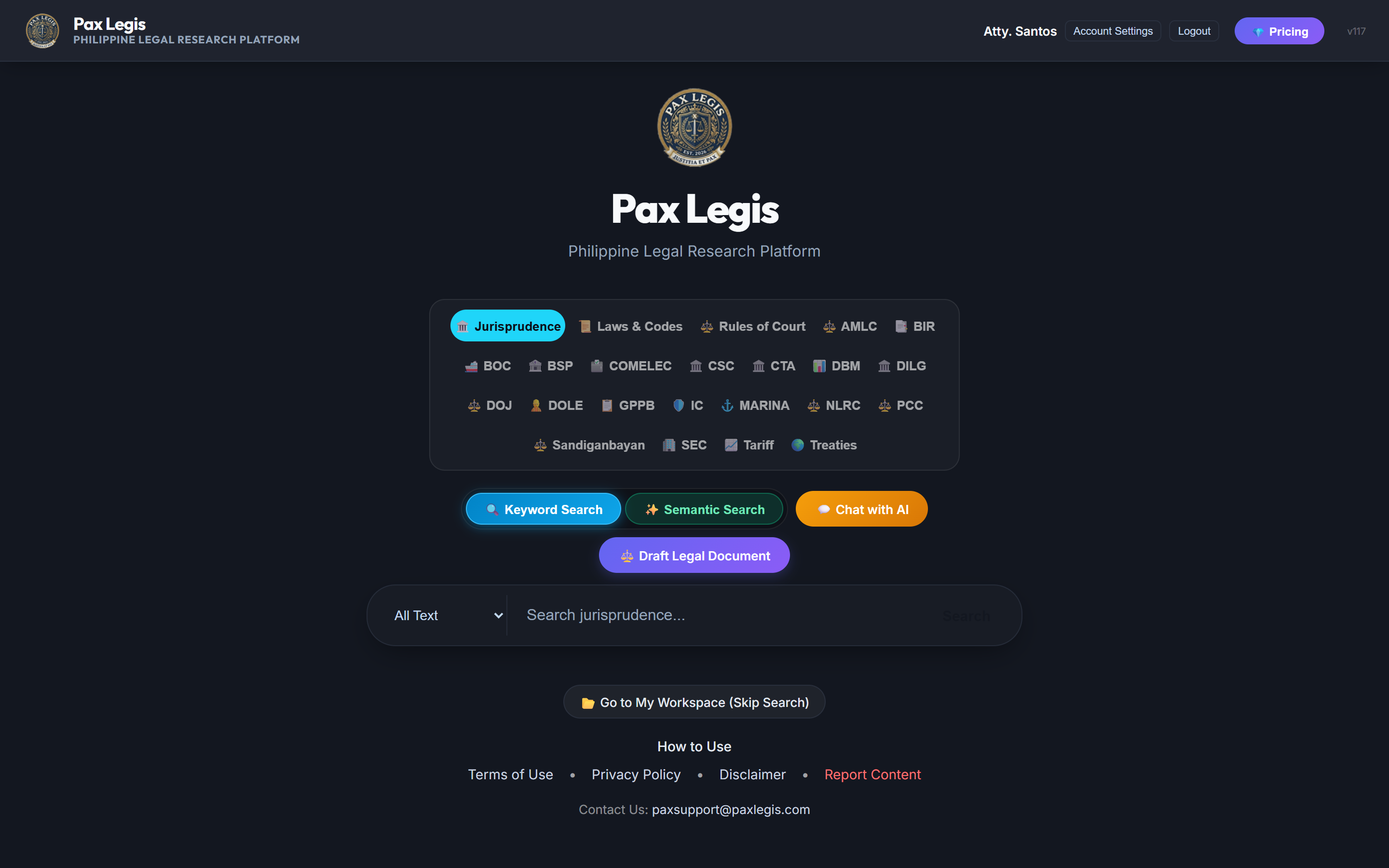
Desktop
Landing page — search bar, agency toggles, and search mode selector.
Select your agency / content type — click any tag in the filter row below the search bar: Jurisprudence, Laws & Codes, Rules, BIR, SEC, COMELEC, and more. You can select multiple agencies to search across all of them simultaneously.
Choose a search mode — 🔵 Keyword searches for exact word matches in titles, G.R. numbers, and full text. ✨ Semantic Search uses AI vector embeddings to understand the meaning behind your query — ideal when you don't know the exact legal term.
Type your query and press Enter — use specific G.R. numbers (e.g., G.R. 152476), law references (e.g., RA 10173), or natural-language questions for Semantic mode (e.g., "rights of an arrested person").
Sort your results — once results appear, use the sort buttons to order by 🔥 Relevance, 📅 Newest, ⏳ Oldest, or 🔤 Title A–Z without re-running the search.
Filter by year range — use the year sliders in the left sidebar to narrow results to a specific decade or date window.
ℹ️ Free Tier: Keyword search is unlimited. Semantic Search is limited to 3 queries per day on a free account. Premium accounts receive 25/day; AI Plus accounts receive 100/day.
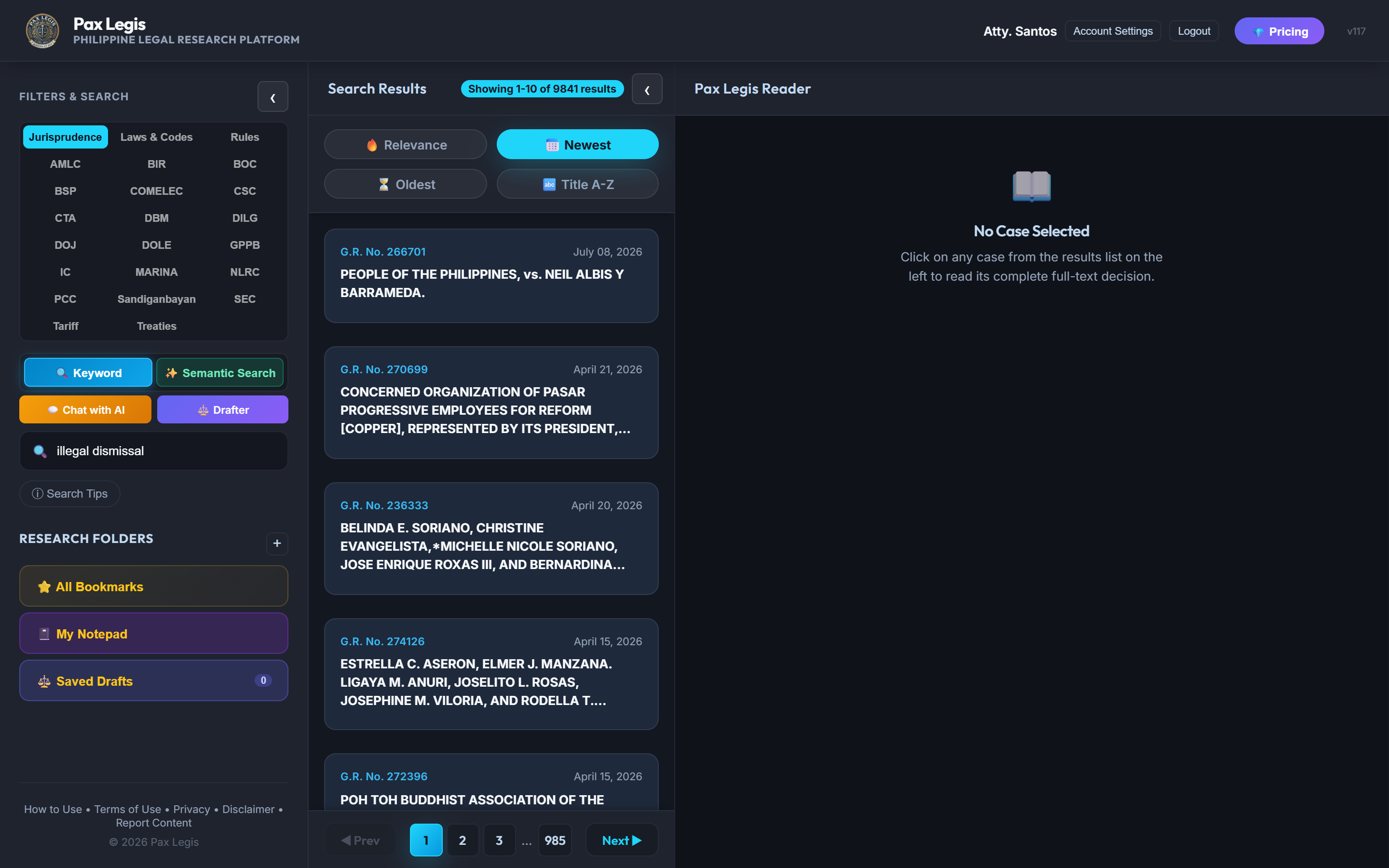
Desktop3-column layout: Filters | Results | Reader
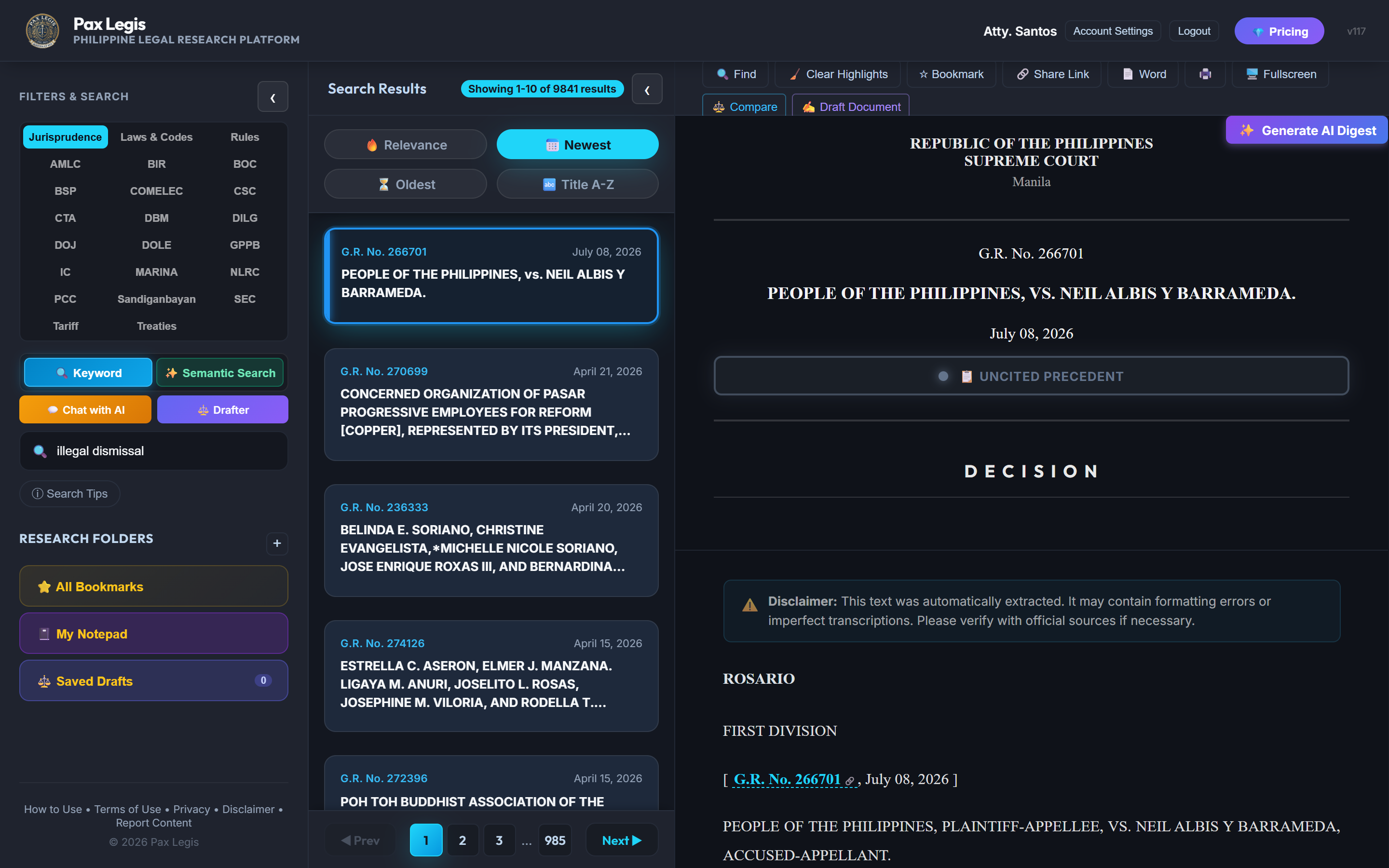
DesktopReader pane with full case text, ponente, and toolbar.
Click any result card in the center column — the document loads instantly in the right-hand Reader Pane without leaving the search results.
Reader toolbar icons:
✨ AI Digest — generate a structured summary
🤖 AI Chat — ask the AI about this specific case
🔖 Bookmark — save to your Research Library
✍️ Notepad — open a private scratchpad beside the text
🔗 Copy Link — copy a shareable direct URL
📄 Word / PDF — export the case
Subsequent Citations — every case that cites the decision you're reading is listed at the top of the reader. Click Tap to view to expand the list.
Smart cross-links — blue-underlined G.R. numbers and statute references inside the document body are clickable. Tapping one loads that referenced document in the comparison pane.
Paginate your results — use the Prev / Next page controls at the bottom of the center column to browse more results without re-typing your query.
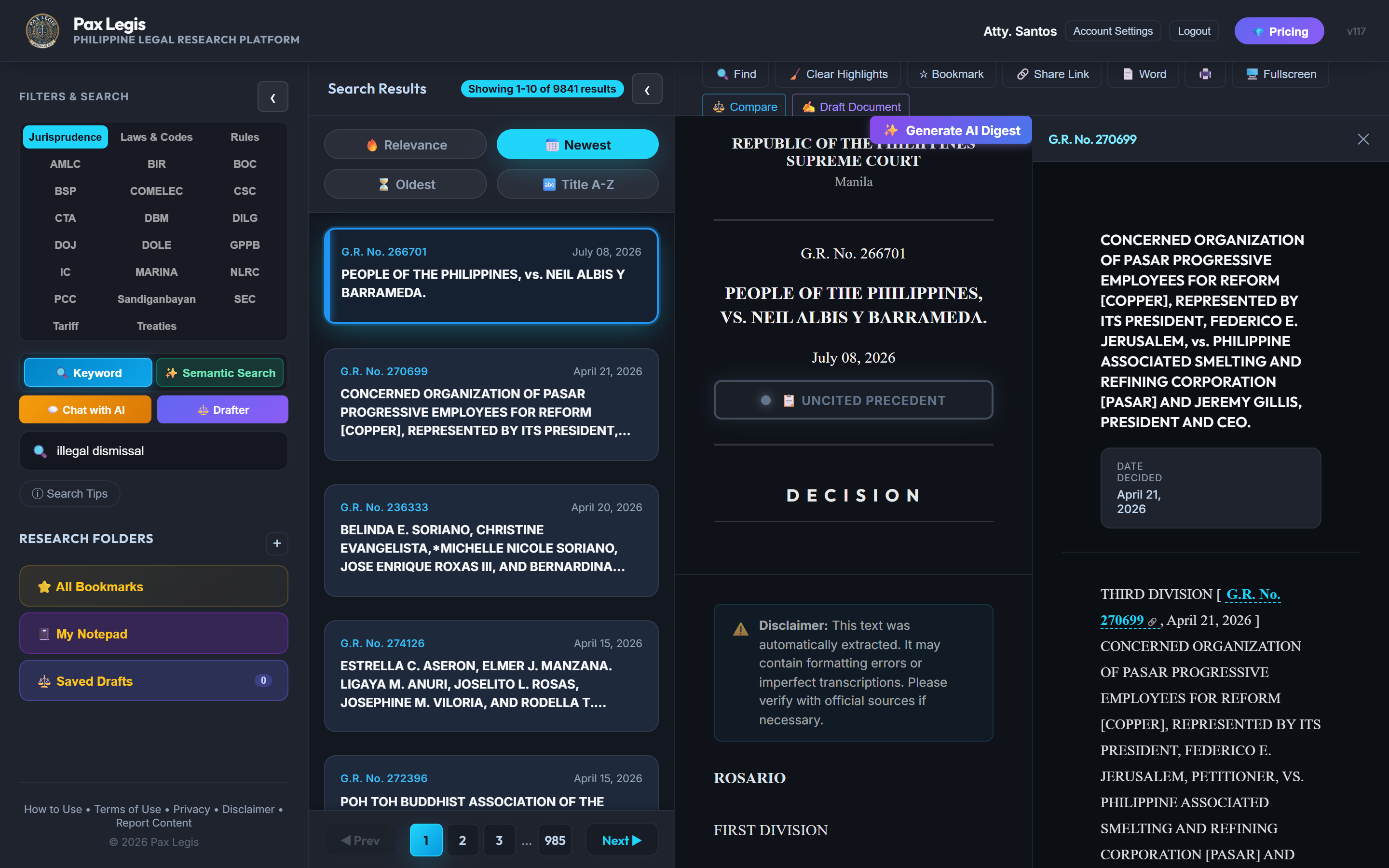
DesktopSplit view — two case documents open side-by-side for direct comparison.
Open your first document in the main Reader Pane by clicking any result card as normal.
Open the comparison pane — inside the reader toolbar, click the ⚖️ Compare icon (or right-click / long-press a result card and choose Open in comparison pane). A second reader pane slides in to the right.
Load any document into the comparison pane — click a cross-link inside the primary case, or browse to any other result and choose to open it in the secondary pane.
Scroll each pane independently — the two reader panes scroll separately so you can position each document exactly where you need it.
Close the comparison pane — click the ✕ button at the top-right of the secondary pane, or press Esc.
💡 Pro tip: The comparison panel is perfect for checking whether a landmark ruling was modified, reversed, or affirmed by a later decision — open the original and the subsequent citation side by side.
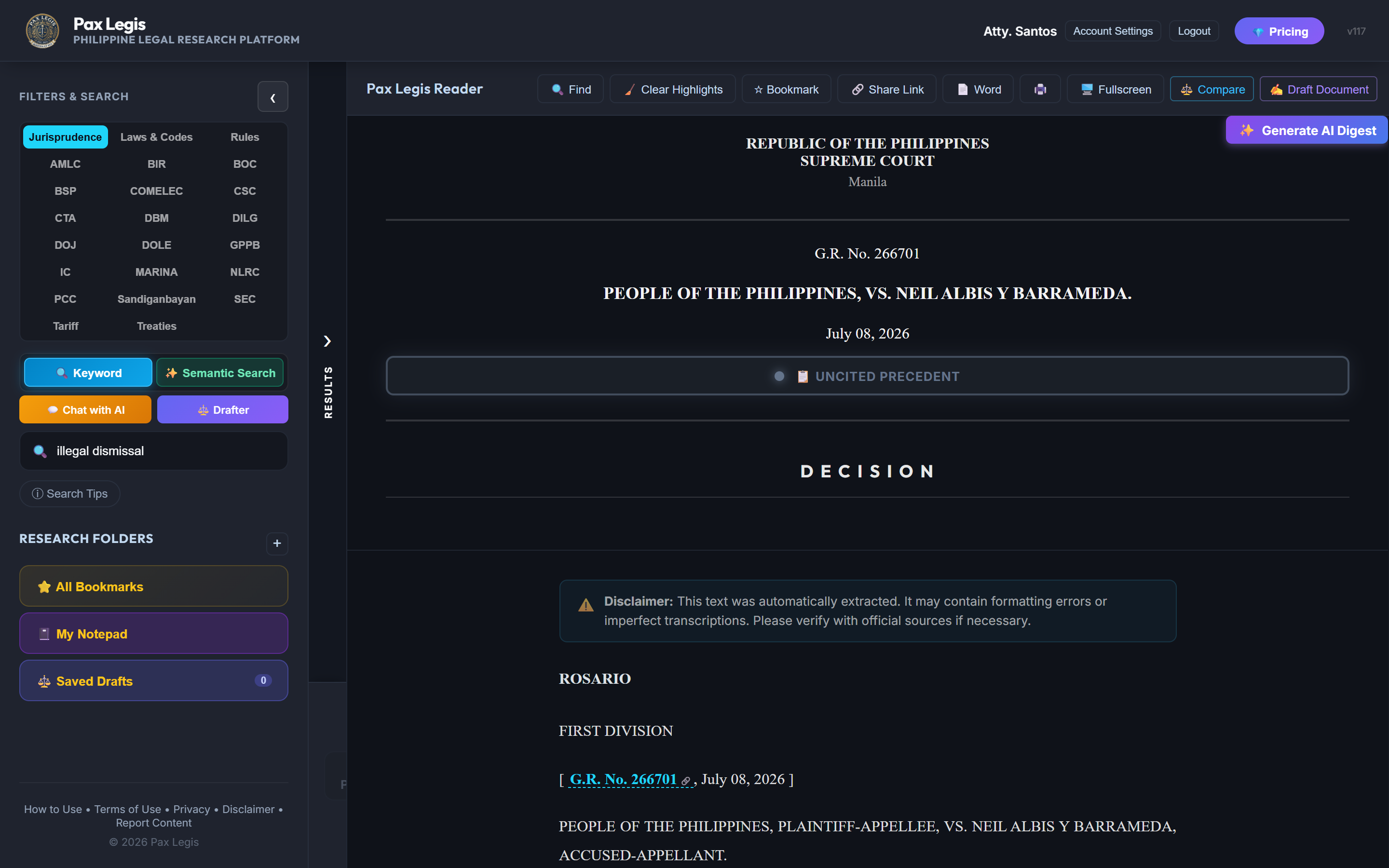
DesktopResults panel collapsed — reader expands to fill the extra width.
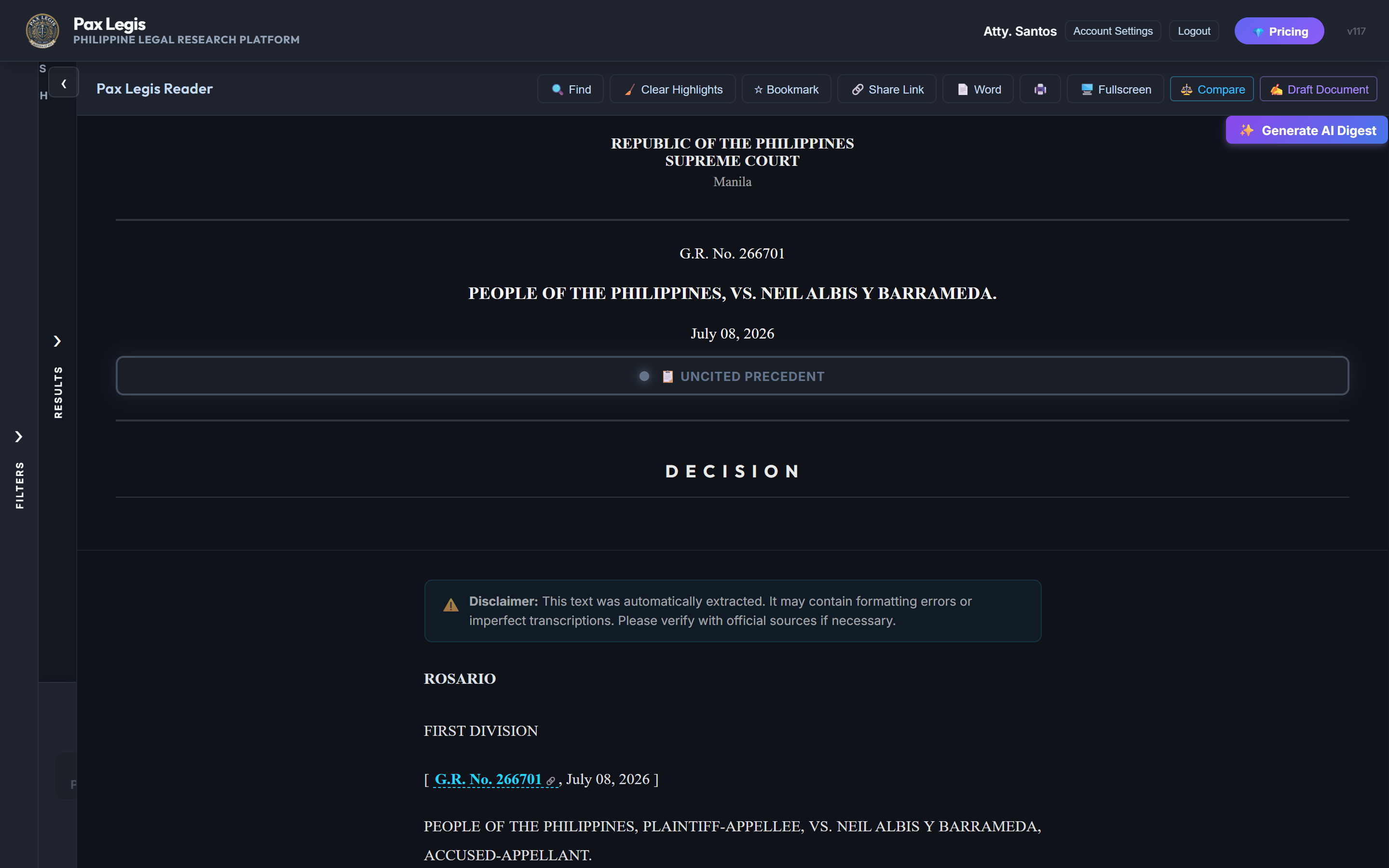
DesktopBoth panels collapsed — reader fills ~90% of the viewport.
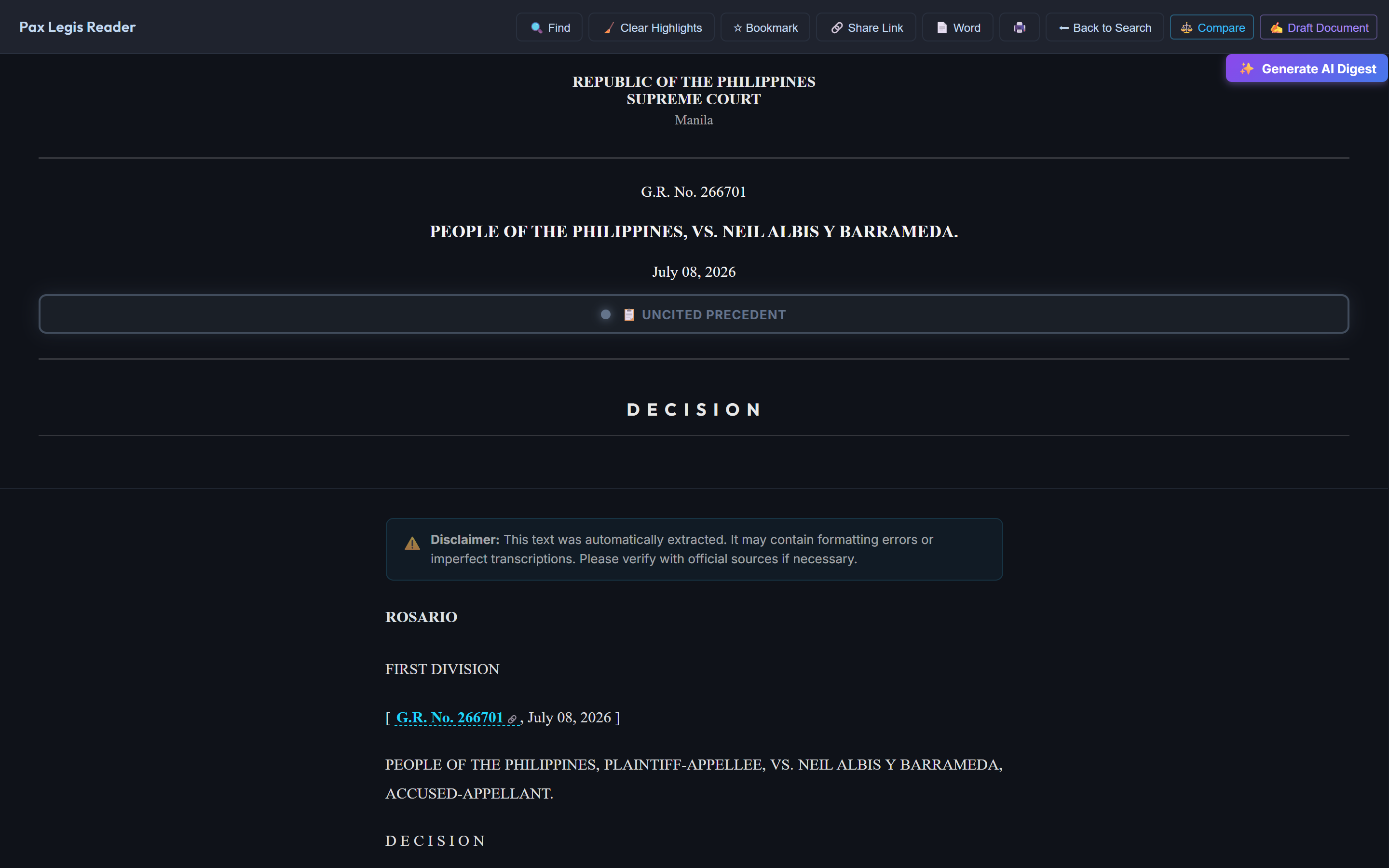
DesktopTrue fullscreen reader — all UI chrome hidden for distraction-free reading.
Collapse the Results Panel — click the ‹ chevron button at the top-right edge of the center (results) column. The panel shrinks into a thin vertical "› RESULTS" strip. Click the strip again to expand it.
Collapse the Filters Sidebar — click the ‹ chevron at the top-right edge of the left sidebar. It collapses into a narrow strip, giving the reader even more horizontal space.
Collapse both panels at once — collapse both the sidebar and the results column. The reader pane now occupies roughly 90% of your screen — ideal for reading long decisions without distraction.
Enter true Fullscreen mode — click the ⛶ fullscreen button in the reader toolbar to expand the reader to 100% of your browser window, hiding all other panels and the app header. Press Esc or click the button again to exit.
Restore panels — click the collapsed strip for either panel to re-expand it. Everything returns to its previous width automatically.
ℹ️ Keyboard shortcut: Press F while the reader is focused to toggle fullscreen mode without reaching for the toolbar button.
✨
AI Case Digest
One click generates a structured summary: facts, issue, ruling, doctrine, and ponente.
🤖
AI Chat Assistant
Ask follow-up questions about the open case in a conversational format. The AI retains context across turns.
🖊️
Drafting Engine
Generate legal draft templates (demand letters, pleadings, contracts). Saved drafts sync to your account.
Generate a Case Digest — open any case in the reader, then click the ✨ AI Digest button in the toolbar. A structured digest panel appears beside the full text in seconds.
Chat about the current case — click 🤖 Chat with AI in the sidebar or reader toolbar. Type your question (e.g., "What was the dissenting opinion?" or "Summarize the doctrine in one sentence").
Use Action Chips — below the chat input, clickable suggestion chips let you instantly ask common questions without typing (e.g., Summarize this case, Draft a demand letter based on this ruling).
Open the Drafting Engine — click the 🖊️ Drafter button in the search bar area. Choose a template type, fill in the key details, and the AI produces a ready-to-edit draft.
Manage chat history — all past conversations appear in the chat sidebar. Pin critical threads to keep them at the top. Delete conversations you no longer need.
⚠️ AI responses are for research assistance only. Always verify conclusions against the original source document before relying on them in legal proceedings.
Save any document — click the 🔖 ribbon icon on a result card or inside the reader toolbar. The document is instantly added to your All Bookmarks folder.
Organize into Research Folders — in the left sidebar, click + New Folder under Research Folders. Give it a name (e.g., Labor Law Cases) and drag bookmarks into it.
Open your Research Library — click any folder name in the sidebar to view its saved documents. Click a bookmark card to reopen the document in the reader instantly.
Cloud Sync — all bookmarks are stored server-side and synchronize automatically between your desktop browser and the Pax Legis mobile app. Log in with the same account on any device to access them.
My Notepad — click 📓 My Notepad in the sidebar to open a private, freeform text scratchpad. Write notes, paste citations, or draft arguments. Notes are saved locally on your current device.
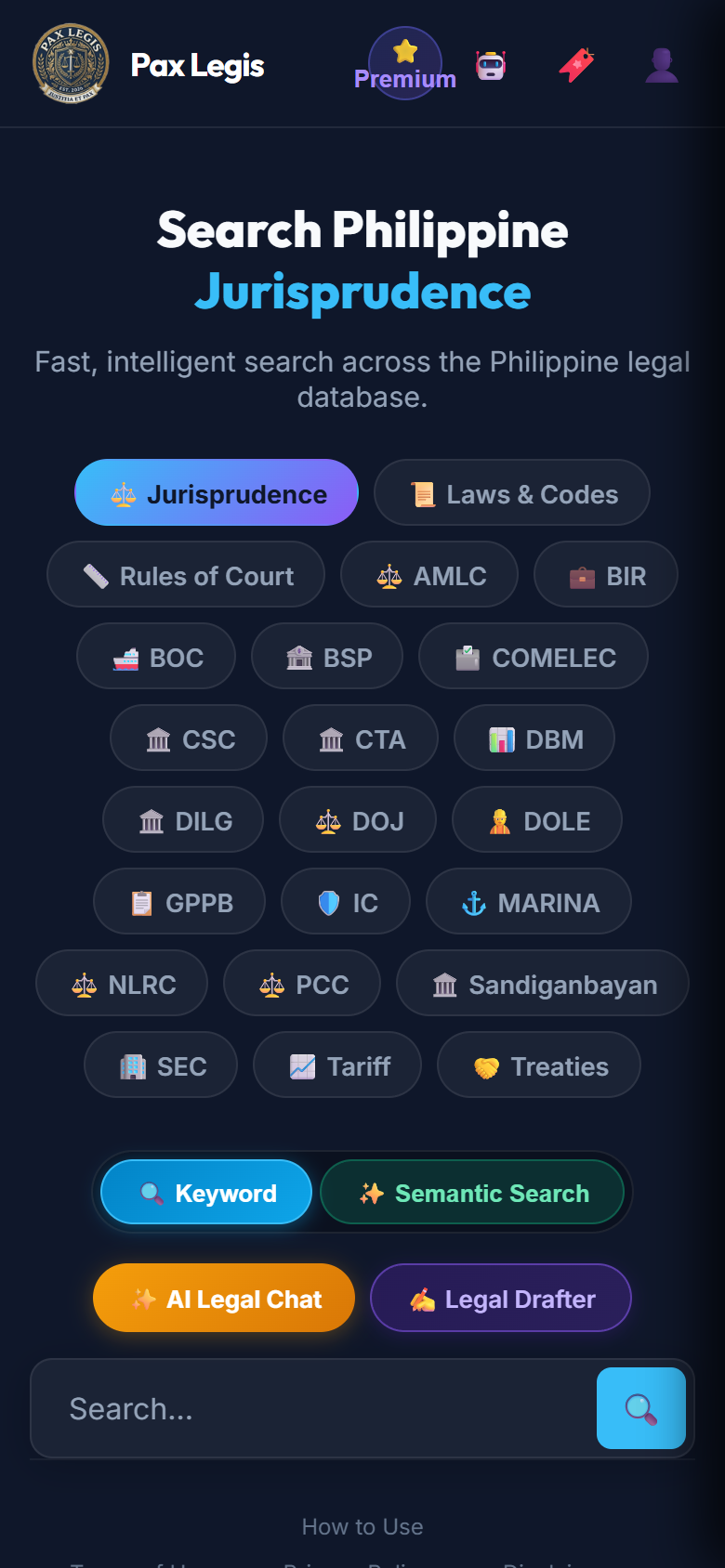
MobileHome screen
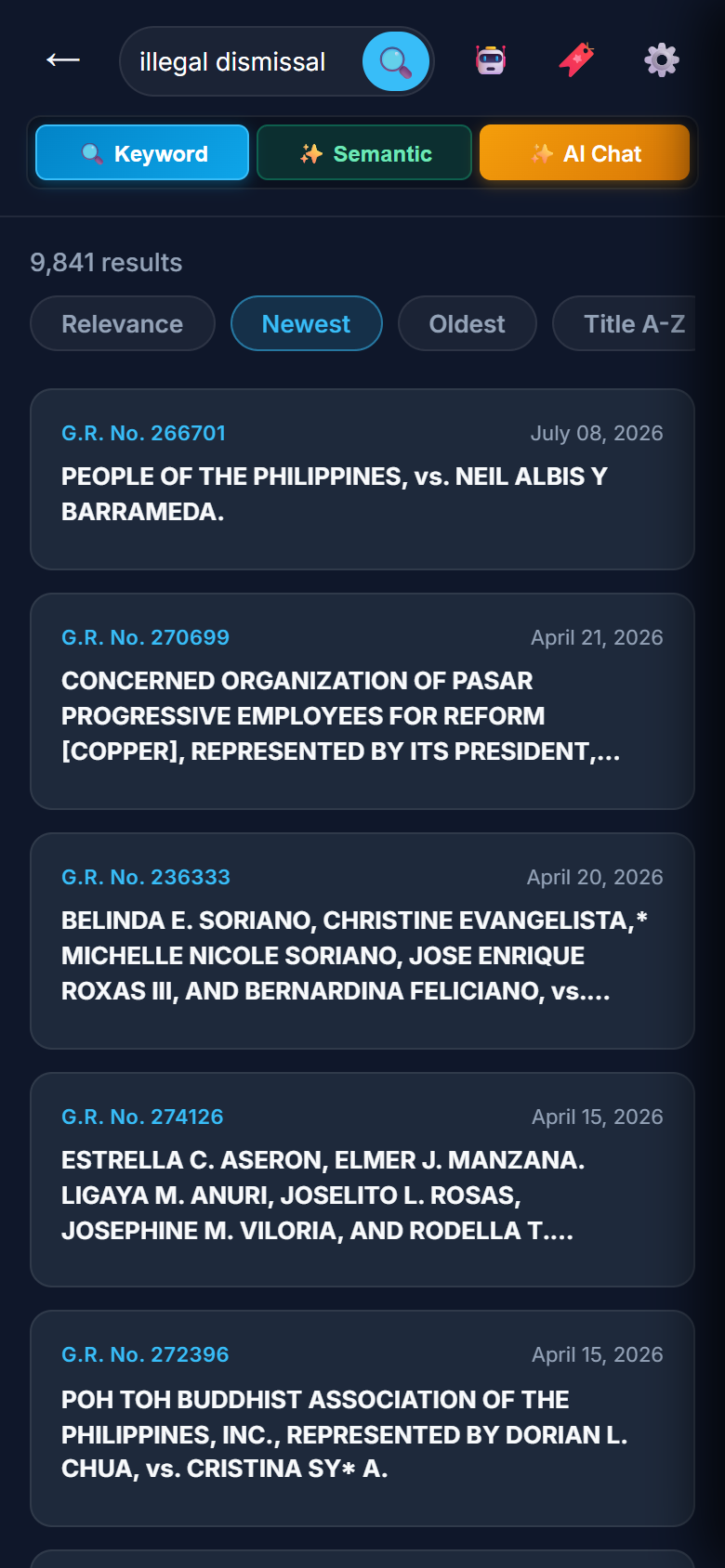
MobileSearch results
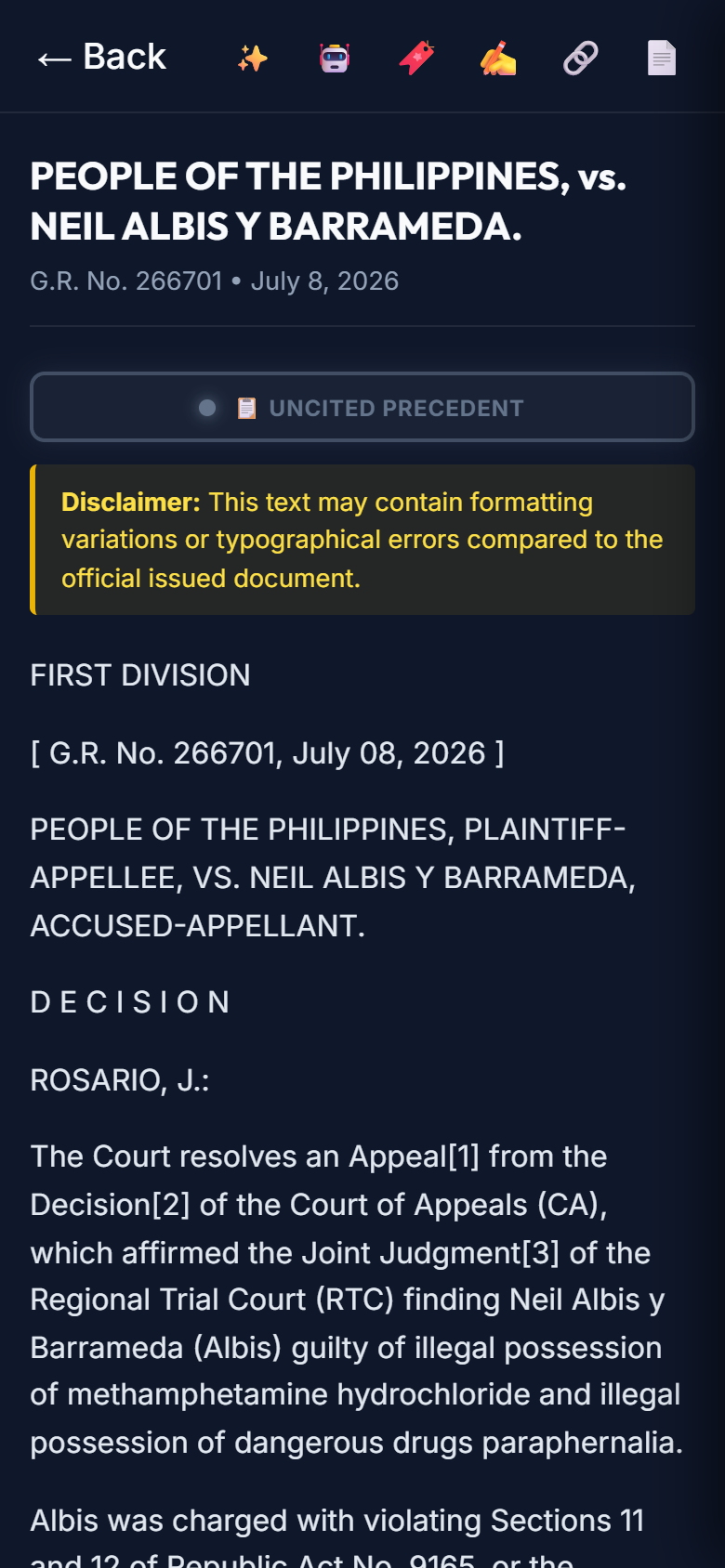
MobileCase reader
Navigate to paxlegis.com on your phone browser. Tap Switch to Mobile View in the bottom bar, or go directly to paxlegis.com/mobile.html.
Select agency & search mode — tap the agency chips to toggle your content source. Tap 🔵 Keyword or ✨ Semantic, then type your query and tap the search button.
Browse results & open a case — scroll through the results feed and tap any card to open the full reader. The header shows the case title, G.R. number, and date.
Mobile reader toolbar — at the top of the reader screen: ✨ Digest 🤖 AI Chat 🔖 Bookmark ✍️ Note 🔗 Share 📄 Export
Tap ← Back to return to results from the reader, or tap the home icon to go back to the search home screen.
Bookmarks sync — bookmarks you save on mobile are instantly available on desktop (and vice versa) as long as you are logged into the same account.
ℹ️ The side-by-side comparison panel is a desktop-only feature. All other features — search, AI digest, bookmarks, AI chat, export — are available on mobile.
The Free Tier provides unlimited access to all cases promulgated within the current rolling year. To unlock the complete 1901–present archive and the Statutes database, a subscription is required.
- 1-Month Pass ₱750
- 3-Month Pass (Quarterly) ₱2,000
- 6-Month Pass (Semi-Annual) ₱3,500
- 1-Year Pass (Annual) ₱6,000
- 5-Year Pass (Long Term) ₱25,000
- 🚀 AI Plus (Monthly) ₱...
🔋 AI Booster Packs (No Expiration)
- Starter Boost (... Credits) ₱...
- Power Boost (... Credits) ₱...
- Supreme Boost (... Credits) ₱...
ℹ️ Manual Payment: GCash, Maya, Wise, and PayPal payments require you to email the transaction receipt to support. Manual activations are processed within 6–12 hours.
Never share your password — system administrators will never ask for your password under any circumstances. Be alert to phishing attempts.
Password resets are manual — for maximum security, the platform does not send automated "Forgot Password" links. If you lose access, email support from the exact email address registered to your account.
Single-device policy — simultaneous logins from multiple devices on the same account are monitored. Accounts found sharing credentials may be suspended.